.svg)





.png)

UI refers to the visual layer of design. It includes the colors, typography, layouts, icons, buttons, and overall aesthetic. UX is the experience layer, and it focuses on how easy the product is to use, how smooth the journey feels, and whether users can achieve their goals without friction. Good UI makes a product look beautiful, while good UX design makes it functional, intuitive, and enjoyable, and when both work together perfectly, the result is a product that people trust, love, and want to return to.
A checklist is essential because design involves many steps, decisions, and responsibilities, and without a clear structure, it becomes easy to miss important details, repeat mistakes, or forget what truly matters to users. Use this checklist as a guide while designing, as a tool for reviewing your work, and as a reliable reference to ensure your final product delivers a truly meaningful user experience.
Understand Before You Design
Before you start designing any screens, it is crucial to fully understand the problem you are trying to solve. Jumping into design too early can lead to wasted effort and a product that does not meet the needs of users or the business. This phase is all about discovery and strategy.
Define the Problem
Design is most effective when it solves a real problem. Start by clarifying exactly what you are trying to achieve.
Identify the business goal
Ask yourself what the company or organization wants to accomplish. Is it increasing sales, improving user retention, simplifying a complex process, or making information easier to access? Knowing the business goal ensures your design aligns with larger objectives.
Define the user problem
Next, think about the users. What difficulties or frustrations are they facing? A good way to uncover this is by talking to real users or reviewing user feedback. Understanding the user problem helps you design solutions that actually make life easier for the people who will use your product.
Clarify success metrics
Finally, determine how you will measure whether your design works. This could be metrics like conversion rate, task completion time, number of errors, or user satisfaction scores. Setting clear success metrics keeps your work focused and measurable.
Know Your Users
Once you know the problem, the next step is to understand the people you are designing for. The better you know your users, the more effective and meaningful your design will be.
User personas
Create fictional characters that represent your key user types. Include details such as their goals, motivations, frustrations, and behaviors. Personas help you visualise who you are designing for and keep the user perspective at the centre of your decisions.
Use cases and scenarios
Think about how users will interact with your product in real life. What steps will they take to accomplish their goals? Use cases and scenarios help you anticipate real-world situations and design for them.
User journeys
Map out the step-by-step path a user will take through your product. This could include how they first discover your product, the actions they take, and how they achieve their goal. User journeys help you see the big picture and identify potential pain points before they happen.
Research the Competition
Learning from others is a smart way to improve your design and avoid common mistakes. By looking at competitors, you can discover what works and what does not.
Analyze competitor apps and websites
Spend time exploring similar products in your industry. Observe the design patterns, features, and flows they use. Take note of what makes their experience smooth and what frustrates users.
Identify gaps and opportunities
Look for areas where competitors fall short or where users express dissatisfaction. These gaps are your chance to create a better experience and differentiate your product.
Adopt best practices without copying
You can learn from successful designs but avoid copying them blindly. Use the insights to inspire your own creative solutions that fit your users and brand.
Foundation First (Information Architecture)
Before you start designing visuals, you need a strong structure behind your product. Information Architecture is about organizing content in a way that feels logical, simple, and easy to navigate. If the structure is weak, users will get confused, feel lost, and leave. A strong foundation makes the experience smooth, predictable, and enjoyable.
Structure the Experience
A product that is structured well helps users understand where they are, what they can do, and where they can go next. Good structure reduces confusion and frustration.
Content hierarchy
Decide what information is most important and what can stay in the background. The most important content should be easier to see and easier to reach. For example, in an e-commerce app, products and buying options are more important than company history. A clear hierarchy helps users focus on what matters and prevents them from feeling overwhelmed.
Site map or app flow
A site map or app flow is like a blueprint of your product. It shows all pages or screens and how they are connected. This helps you plan how users move from one screen to another. When you map everything first, you avoid random design decisions later. It also helps teams stay aligned and understand the overall product structure.
Navigation structure
Navigation is how users move around inside your product. It should feel natural and simple. Users should never feel lost or unsure about where to click next. Clear menus, logical grouping of content, and visible links help users explore smoothly. Good navigation saves time and builds trust.
Plan User Paths
Not every user will take the same path inside your product. Some users may just explore. Others may come in with a clear goal, like purchasing, booking, or signing up. Planning user paths helps guide them in the right direction.
Primary and secondary actions
Primary actions are the most important tasks you want users to complete, such as Buy Now or Sign Up. Secondary actions are helpful but not as important, such as Learn More or Save for Later. Designing with this in mind makes the experience focused and purposeful.
Entry and exit points
Think about how users enter your product and where they might leave. An entry point could be a homepage, a login screen, or a landing page from an advertisement. An exit point could be after completing a purchase or simply closing the app in frustration. Understanding these points helps you create smoother flows and reduce drop-offs.
Conversion-focused journey mapping
Conversion means guiding users to complete an important goal. This could be making a purchase, booking a service, subscribing, or completing a form. A conversion-focused journey maps every step that leads the user from the beginning to the final action. It helps you remove unnecessary steps, reduce confusion, and make the process faster and simpler.
Design the Experience (UX Design Phase)
This phase is about planning how your product will actually work. It focuses on structure, flow, and usability before thinking about colors or visual style. The goal is to make sure the experience feels natural, helpful, and simple.
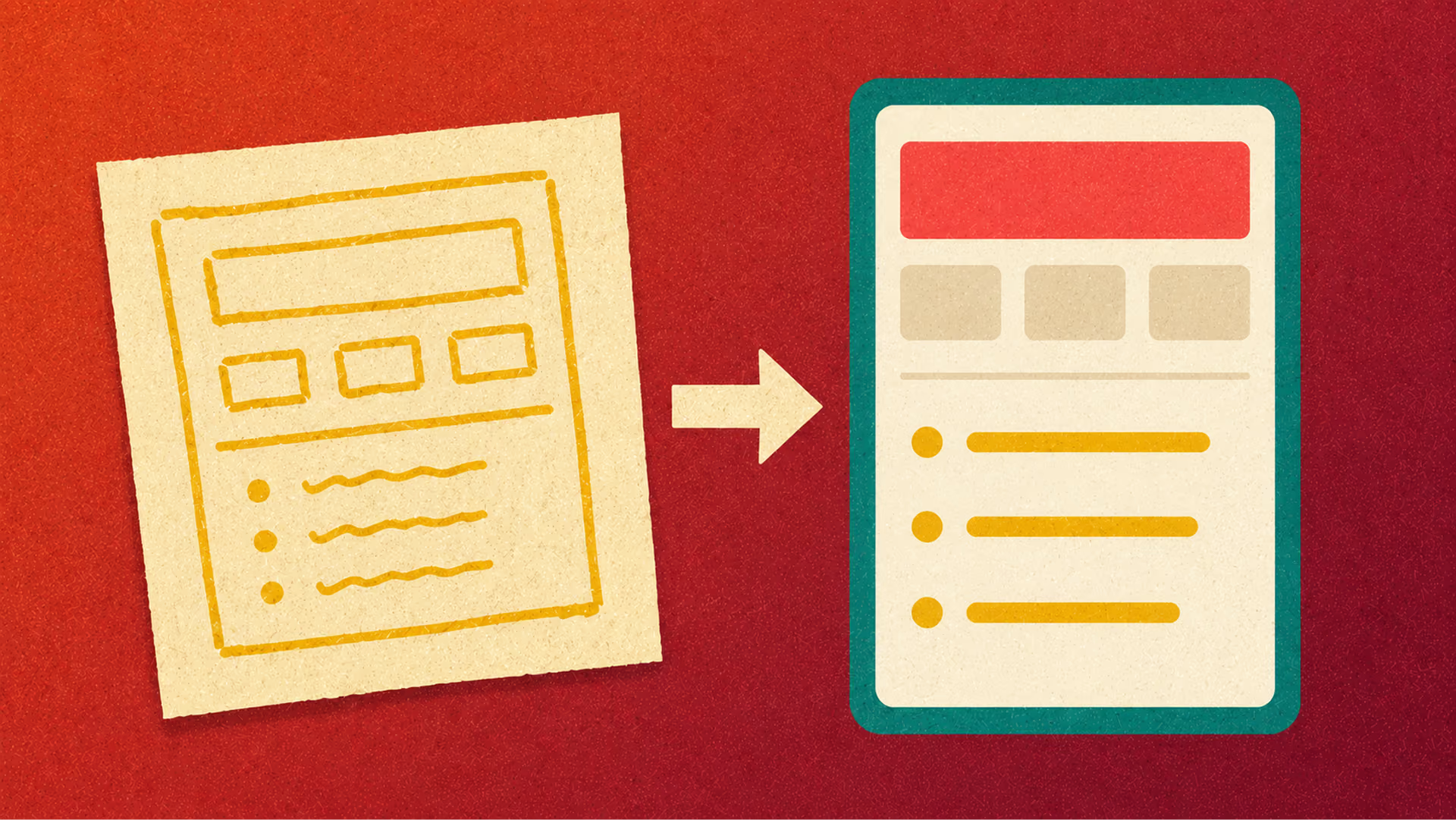
Wireframing
Wireframes are like the blueprint of a house. You are not decorating yet. You are simply deciding where everything should go and how users will move around.
- Start with low-fidelity sketches - Begin with simple rough drawings. These can be done on paper or using basic tools. The idea is to explore different layouts quickly without worrying about perfection.
- Move to mid-fidelity structures - Once your ideas feel clearer, you can refine them into cleaner wireframes that show structure more accurately. These help you check if layouts are practical and make sense visually.
- Ensure layout logic makes sense - Everything should have a purpose. Buttons should be where users expect them. Important information should be easy to find. The layout should guide the user naturally without confusion.
Usability First
Good design is not about being fancy. It is about being useful. Users should feel comfortable and confident while using your product.
- Clear and intuitive navigation - Users should always know where they are and how to get where they want to go. Labels, menus, and actions should feel obvious, not confusing.
- Logical content placement - Put information where users naturally look for it. Important things should never be buried. Arrange content in a way that feels natural and easy to follow.
- Predictable interactions - When users click, swipe, or tap something, the result should match their expectations. Consistency builds trust. Surprise and confusion push users away.
Accessibility and Inclusivity
A great product is one that everyone can use, including people with disabilities and different abilities.
- WCAG basics - Follow basic accessibility standards, such as readable text sizes, good contrast, and clear structure. This ensures more people can comfortably use your product.
- Keyboard and screen reader support - Not everyone uses a mouse or touch. Some rely on keyboards or assistive technology. Your product should support them smoothly.
- Inclusive language and visuals - Use language that is respectful, friendly, and easy to understand. Avoid bias in visuals. Design for different cultures, backgrounds, and abilities.
Bring It to Life (UI Design Phase)
Once UX is strong, then the UI phase focuses on appearance. This is where your design gains personality, style, and visual identity.
Visual Consistency
Consistency creates familiarity and trust. When things look and behave in a similar way, users feel comfortable.
.jpg)
- Color palette and meaning - Choose a set of colors and use them thoughtfully. Colors should support branding and also help users understand actions such as warnings or success states.
- Typography hierarchy - Use fonts in a structured way. Headlines, subheadings, and body text should look different but aligned. Good typography improves readability.
- Iconography style - Icons should be clear, simple, and consistent in design. They should support meaning, not confuse users.
Layout and Spacing
A clean design helps users think less and enjoy more.
- Grid system usage - Using a grid helps keep everything aligned and organized. It ensures the structure remains neat and professional.
- Proper white space - White space is not empty space. It gives content room to breathe. It reduces visual stress and improves focus.
- Balanced visual rhythm - Elements should feel balanced. Nothing should feel too crowded or too empty. A good rhythm makes design pleasant to look at.
Branding and Identity
Your product should feel like your brand everywhere.
- Brand tone and feel - Design should match the company's personality, whether it is playful, professional, modern, or friendly.
- Logo treatment - Use the logo correctly. It should always look sharp, respected, and well-placed.
- Consistency across screens - Every screen should feel like part of the same product, not separate designs.
Interaction and Micro Experience
This part of the design is about the small details that make a product feel smart, smooth, and human. These tiny elements may seem minor, but they greatly improve user satisfaction and confidence.
Microinteractions
Microinteractions are small responses that happen when users do something. They make the product feel alive and responsive.
- Hover effects and click feedback - When users move the cursor or tap a button, there should be a visual response. This tells users that the system has detected their action.
- Loading behaviors - Waiting can feel annoying. A good loading animation or message reassures users that progress is happening and that they are not stuck.
- Success and error indicators - Clear success messages make users feel accomplished. Clear error messages help them understand what went wrong and what to do next.
Motion and Animation
Motion is helpful when it supports understanding.
- Subtle guiding animations - Soft animations can guide the eye, show movement between screens, and explain what is changing.
- Avoid unnecessary motion - Too much animation can distract or even cause discomfort. Only use motion when it has a purpose.
- Smooth and performance-friendly - Animations should feel natural and should never slow the system.
Feedback and Response
Users need constant reassurance that the system is working.
- Action acknowledgement - Every action, whether submitting a form or clicking a button, should get a response.
- Error prevention - Good design helps users avoid mistakes rather than punishing them after mistakes happen.
- Helpful messages - If something goes wrong, messages should be friendly, clear, and supportive instead of confusing or technical.
Content Experience (UX Writing)
Words play a powerful role in design. They guide users, reduce confusion, and shape how people feel while using a product. Good UX writing does more than display information. It communicates clearly, supports users emotionally, and helps them move confidently through their tasks. When writing is clear and thoughtful, users trust the product more and feel more comfortable using it.
Clarity in Words
Clarity is the heart of UX writing. Since most users do not read everything and instead scan quickly, your content must be easy to understand at a glance.
- Straightforward wording - Say things in the simplest way possible. Use everyday language. Avoid long or complex sentences. The goal is not to sound clever, but to be clear. Users should never have to guess what something means.
- Avoid jargon - Complicated technical words can confuse or intimidate users. Try to replace them with simple alternatives. If technical language is necessary, explain it in a friendly way so everyone can follow along.
- Scannable content - Format text so users can quickly pick out the important parts. Use short paragraphs, helpful headings, lists, and clear spacing. This makes information easier to digest and reduces mental effort.
Tone and Personality
The tone of your writing shapes how users feel. It can make your product feel welcoming, supportive, and trustworthy rather than cold or boring.
- Consistent tone - Your product should feel like it has one steady voice. Whether the user is signing up, getting help, or seeing an error message, the tone should feel familiar and consistent. This consistency builds comfort and trust.
- Conversational but professional - Speak like a helpful human, not a machine. Be friendly and approachable, but also respectful and clear. Avoid being too casual in serious situations or too stiff in simple ones. Balance matters.
- Consider emotional impact - Users sometimes interact with products during stressful or important moments, such as failing a form or making a payment. Kind, calm, and supportive language can reduce anxiety. Instead of blaming users, guide them gently.
Microcopy that Helps
Microcopy may be small, but it has a big job. It helps users understand actions, prevents mistakes, and provides reassurance.
- Buttons that explain actions - Buttons should clearly tell users what will happen when they press them. Clear action text removes uncertainty and builds confidence. For example, “Pay Now” is clearer than simply “Continue.”
- Empty state explanations - When there is no data to show, users should not feel confused. Explain why the page is empty and what they can do next, such as adding data, starting a task, or exploring another section. This turns a confusing moment into a helpful experience.
- Helpful hints and tooltips - Tooltips and hints are like small guides that appear when users need help. They provide short, helpful instructions without overwhelming the screen. This is especially useful for complex features or new users.
Mobile and Responsiveness
Your design should look good and work smoothly on every device, whether it is a phone, tablet, or desktop. Users expect a seamless experience no matter what screen they are using. A responsive and mobile-friendly design makes the product more accessible, easier to use, and more enjoyable.
Mobile First Thinking
Designing for mobile first means starting with the smallest screen and then expanding to larger ones. This approach forces clarity and focus.
- Prioritize essential content - On small screens, space is limited. This helps you identify what is truly important. Show the most valuable information and main actions first, and avoid unnecessary elements.
- Optimize touch interactions - Users interact with mobile devices using their fingers. Buttons, links, and interactive elements should be large enough to tap easily without frustration. Spacing between elements also helps prevent accidental taps.
- Thumb-friendly design - Most people use their thumbs to navigate. Design layouts so key actions are within easy reach. Placing important buttons in comfortable thumb zones creates a smoother experience.
Responsive Behavior
Your design should naturally adjust to different devices instead of breaking or looking awkward.
- Adaptive layouts - Content should rearrange itself intelligently to match screen size. Elements should stack, resize, or reorganize in a way that still feels logical and easy to use.
- Breakpoint testing - Check how your design behaves at different screen widths, such as mobile, tablet, and desktop. Testing ensures nothing overlaps, disappears, or becomes strange to use.
- Scalable images and content - Images, text, and components should resize smoothly without losing quality or breaking the layout. Everything should remain readable and visually balanced.
Performance Considerations
Speed is a major part of user experience. Even a beautiful design will fail if it feels slow.
- Fast loading design - Users leave quickly if a page takes too long to load. Faster design means happier users and better results.
- Lightweight assets - Avoid using unnecessarily large images, heavy animations, or oversized files. Keep your design visually appealing but efficient.
- Avoid clutter - Too many visual elements slow down both performance and user thinking. Clean design improves speed and makes the experience simpler and clearer.
Accessibility Checklist
Accessibility ensures that everyone, including people with disabilities, can use your product comfortably. A truly inclusive design improves usability for all users, not just those with accessibility needs.
.jpg)
Visual Accessibility
Design should support users with low vision, color-blindness, or difficulty reading small or low-contrast text.
- Contrast ratio - Text and important UI elements should have a strong contrast against their background. Good contrast improves readability and reduces eye strain.
- Color-blind friendly palettes - Do not rely on color alone to communicate meaning. Use labels, icons, and patterns so users who cannot differentiate colors can still understand information.
- Scalable text - Allow users to zoom or increase font size without breaking the layout. Text should remain readable and properly aligned even when scaled.
Interaction Accessibility
Your interface should be usable even without a mouse or touch input.
- Keyboard navigation - Users should be able to move through the interface using only a keyboard. Every interactive element must be reachable and usable.
- Focus indicators - Visible focus highlights show which element is currently selected when navigating with a keyboard. This helps users understand where they are on the page.
- Alt text for visuals - Images and icons should include alternative text so screen readers can describe them to visually impaired users. This ensures equal access to information.
Cognitive Accessibility
Design should support users with different thinking speeds, attention levels, and understanding abilities.
- Simple navigation - Clear structure and predictable navigation reduce confusion. Users should always know where they are and where to go next.
- Clear instructions - Explain actions in simple, straightforward language. Avoid ambiguity so users do not have to guess what to do.
- Explicit error messages - Errors should not just say something went wrong. They should explain what happened and how to fix it. This reduces frustration and helps users complete tasks confidently.
Designing with Purpose and Clarity
Designing a successful digital product is not about making something look good alone, it is also about creating an experience that feels intuitive, inclusive, and meaningful for users while also achieving business goals. A well-structured UI/UX checklist helps bring clarity to this process by ensuring that no critical step is overlooked, from understanding the problem and users to refining interactions, content, accessibility, and performance.
This UI/UX checklist helps designers stay organised and make better decisions. It ensures the product is consistent, user-friendly, and meets business goals. Remember, design is never finished - testing, learning from users, and improving continuously is what makes a product truly great.
Or save this article as a PDF for future research, workshops and strategy sessions








.svg)